All ObjectJ Examples
##Marking Growth Rings in Fish Otoliths
####A project for interactive analysis of otoliths with ImageJ and ObjectJ
Norbert Vischer,
Côme Denechaud,
Anders Thorsen
02-jan-2024
version 1.13
---
---
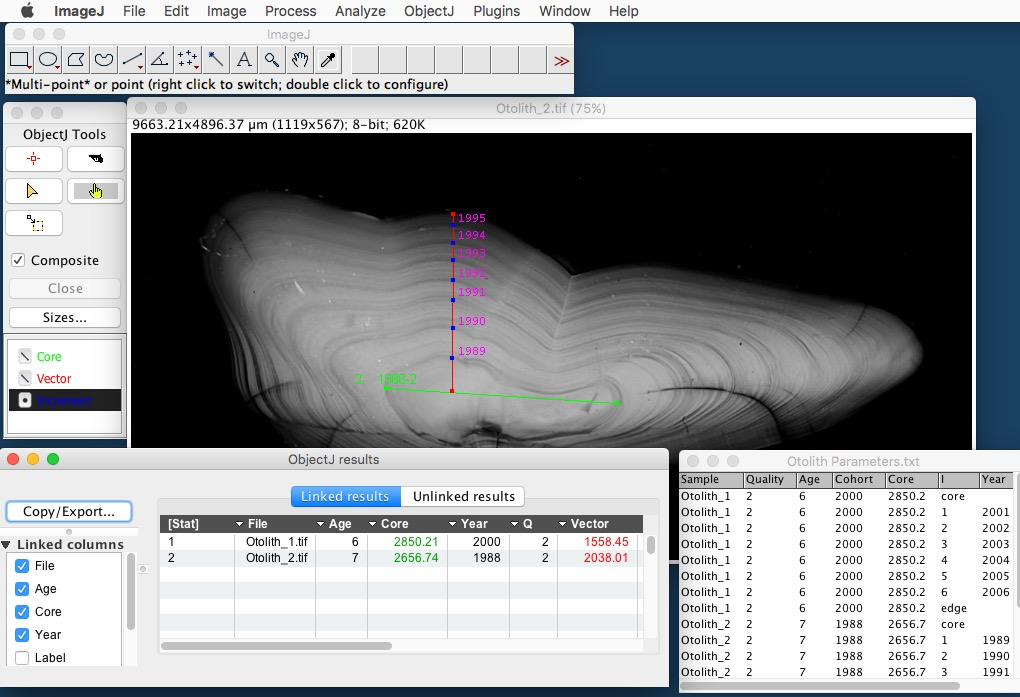
 Instruction Video (3:50 min)
***
####The instruction video covers the following sequence
- Make sure plugin "**ObjectJ**" is loaded under **ImageJ>Plugins**
- (You can install ObjectJ by dragging [objectj_.jar]() onto the ImageJ main window and then confirm to store it in ImageJ's plugins directory)
- For trying out, a folder with two demo otolith images [is available](<../download>)
- Put a copy of [Otoliths_xx.ojj](<../download>) into the folder that contains the images to be annotated
- Open Otoliths_xx.ojj by dragging it into the ImageJ main window
- ObjectJ menu becomes visible
- Link the images to be measured by dragging them into the panel for Linked Images
- Open the first image by double-clicking its name in the panel for linked images
- ObjectJ menu contains four embedded macro commands at the bottom:
- Choose **ObjectJ>Start Sequence [F1]**
- In ObjectJ Tools, "**Core**" is selected and cursor becomes green
- Mark the green Core line
- In ObjectJ Tools, "**Vector**" is automatically selected and cursor becomes red
- Mark the red Vector line
- In ObjectJ Tools, "**Increment**" is automatically selected and cursor becomes blue
- Mark the increments (in any order). Press key **Backspace** to delete the last point
- Finish the sequence by choosing **ObjectJ>Year and Quality...[F2]**
- Enter the start year as positive number, or the end year as negative number
- The sequence is now complete. Optionally, choose **ObjectJ>Show/Hide Year Annotation**
- The annotation is a temporary ImageJ overlay which needs not to be saved
- Continue to measure more otoliths
- Choose **ObjectJ>Save project** which updates the .ojj project file.
- Choose **ObjectJ>Show ObjectJ Results** to observe the results
- Choose **ObjectJ>Create Output Table** for specially formatted output. When saved with .csv or .tsv extension (comma-separated or tab-separated values), ImageJ will recognize it later as table.
####Additional information:
- The colored overlay (Core, Vector, Increments) is not saved as part of the image, it is stored in the `.ojj` project file. The year numbers are not saved as overlay - they are re-built when needed.
- You can "link" more images and continue marking at a later time.
- Also at a later time, you can perfrom corrections: change the position of any marked point by selecting the "triangle" tool in ObjectJ Tools, and **keep the "alt' key down** while moving the point.
- Similarly, you can delete an entire object with the pistol tool, or **keep key "alt" key down** to delete a point only.
- Adding "Increment" points later:
**a)** Optionally choose in ObjectJ Tools> Sizes> 'Show Object Number' = yes.
**b)** From ObjectJ Tools, choose the "Finger" tool, and first click somewhere away from marked points to make sure no object is selected (marker points appear non-fat)
**c)** then double-click any marked point of an unselected object. Now, that object is "open", showing label in italic and with asterisks: e.g. in case of Object #17, the "Core" item will be labeled as `*`_17_`*`.
**d)** Then, from ObjectJ Tools, select "Increment" and add more blue points. Choose either **ObjectJ>Year and Quality...** or **ObjectJ>Create Output Table** to snap points to the vector and update results.
- When choosing **ObjectJ>Create Output Table**, the blue "Increment" points will be arranged in the correct order and snap onto the red Vector line before the table is created.
- You also can change the scaling of linked .tif or .jpg images: choose **ObjectJ>Show Project Window> Images** and right-click and change any field in column "px/unit". Results will be updated.
####Addition in Version 1.13:
In previous versions, the red "Vector" was a single straight line. From version 1.13, you can use a segmented line: before starting, choose **ObjectJ>Show Project Window** and select the **Objects** panel. For Item "Vector", choose **Item Shape = Polyline**, and optionally choose ObjectJ>Save Project. For example, after marking the core, create a "vector" with 1, 3 or 5 segments, then press the tab key to switch to itemtype "Increment", or click "Increment" in ObjectJ Tools to continue with marking points.
Note that the "Vector" column in ObjectJ>Show ObjectJ Results shows the polyline's entire length.
Another improvement is the menu **ObjectJ>Show/Hide Annotations (long)** (see screenshot bottom part).
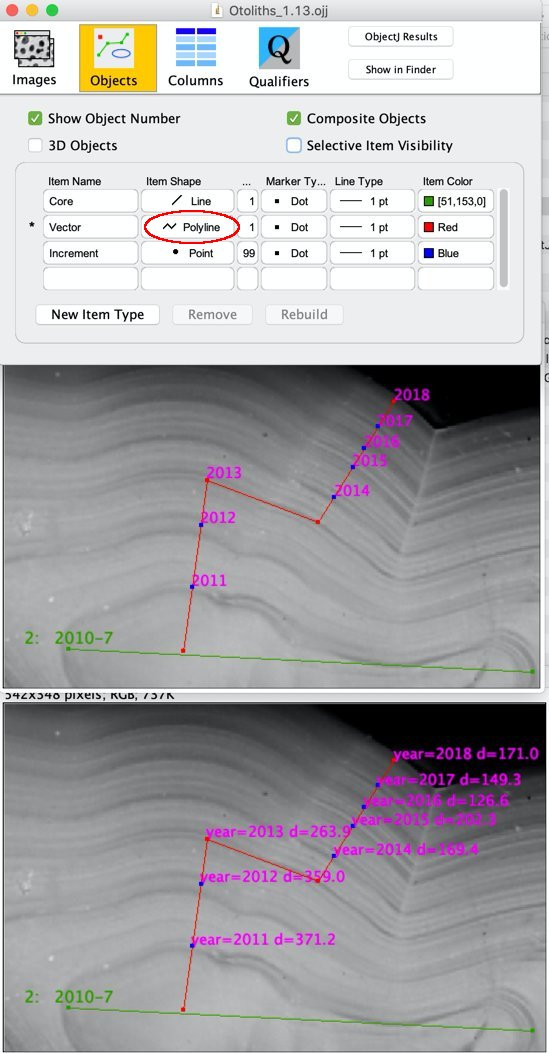
Here, object #2 started at year=2010 with quality=7, but from year 2013 we chose to mark rings along a different line segment. **ObjectJ>Show/Hide Annotations (long)** (screenshot bottom) can be used to verify any distance d with ImageJ's line tool, which shows its length in the status bar.
####Table structure:
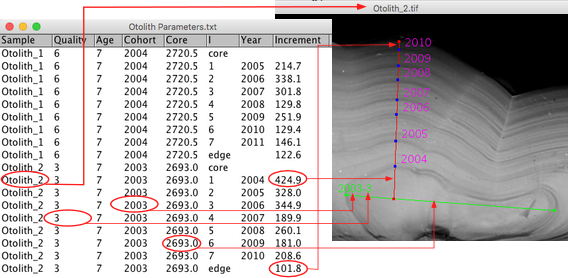
- The contents of the table can optionally be adjusted via the embedded macros.
The current sturcture is shown below:
__
####[Extended Tutorial ]()
**by Côme Denechaud**
Instruction Video (3:50 min)
***
####The instruction video covers the following sequence
- Make sure plugin "**ObjectJ**" is loaded under **ImageJ>Plugins**
- (You can install ObjectJ by dragging [objectj_.jar]() onto the ImageJ main window and then confirm to store it in ImageJ's plugins directory)
- For trying out, a folder with two demo otolith images [is available](<../download>)
- Put a copy of [Otoliths_xx.ojj](<../download>) into the folder that contains the images to be annotated
- Open Otoliths_xx.ojj by dragging it into the ImageJ main window
- ObjectJ menu becomes visible
- Link the images to be measured by dragging them into the panel for Linked Images
- Open the first image by double-clicking its name in the panel for linked images
- ObjectJ menu contains four embedded macro commands at the bottom:
- Choose **ObjectJ>Start Sequence [F1]**
- In ObjectJ Tools, "**Core**" is selected and cursor becomes green
- Mark the green Core line
- In ObjectJ Tools, "**Vector**" is automatically selected and cursor becomes red
- Mark the red Vector line
- In ObjectJ Tools, "**Increment**" is automatically selected and cursor becomes blue
- Mark the increments (in any order). Press key **Backspace** to delete the last point
- Finish the sequence by choosing **ObjectJ>Year and Quality...[F2]**
- Enter the start year as positive number, or the end year as negative number
- The sequence is now complete. Optionally, choose **ObjectJ>Show/Hide Year Annotation**
- The annotation is a temporary ImageJ overlay which needs not to be saved
- Continue to measure more otoliths
- Choose **ObjectJ>Save project** which updates the .ojj project file.
- Choose **ObjectJ>Show ObjectJ Results** to observe the results
- Choose **ObjectJ>Create Output Table** for specially formatted output. When saved with .csv or .tsv extension (comma-separated or tab-separated values), ImageJ will recognize it later as table.
####Additional information:
- The colored overlay (Core, Vector, Increments) is not saved as part of the image, it is stored in the `.ojj` project file. The year numbers are not saved as overlay - they are re-built when needed.
- You can "link" more images and continue marking at a later time.
- Also at a later time, you can perfrom corrections: change the position of any marked point by selecting the "triangle" tool in ObjectJ Tools, and **keep the "alt' key down** while moving the point.
- Similarly, you can delete an entire object with the pistol tool, or **keep key "alt" key down** to delete a point only.
- Adding "Increment" points later:
**a)** Optionally choose in ObjectJ Tools> Sizes> 'Show Object Number' = yes.
**b)** From ObjectJ Tools, choose the "Finger" tool, and first click somewhere away from marked points to make sure no object is selected (marker points appear non-fat)
**c)** then double-click any marked point of an unselected object. Now, that object is "open", showing label in italic and with asterisks: e.g. in case of Object #17, the "Core" item will be labeled as `*`_17_`*`.
**d)** Then, from ObjectJ Tools, select "Increment" and add more blue points. Choose either **ObjectJ>Year and Quality...** or **ObjectJ>Create Output Table** to snap points to the vector and update results.
- When choosing **ObjectJ>Create Output Table**, the blue "Increment" points will be arranged in the correct order and snap onto the red Vector line before the table is created.
- You also can change the scaling of linked .tif or .jpg images: choose **ObjectJ>Show Project Window> Images** and right-click and change any field in column "px/unit". Results will be updated.
####Addition in Version 1.13:
In previous versions, the red "Vector" was a single straight line. From version 1.13, you can use a segmented line: before starting, choose **ObjectJ>Show Project Window** and select the **Objects** panel. For Item "Vector", choose **Item Shape = Polyline**, and optionally choose ObjectJ>Save Project. For example, after marking the core, create a "vector" with 1, 3 or 5 segments, then press the tab key to switch to itemtype "Increment", or click "Increment" in ObjectJ Tools to continue with marking points.
Note that the "Vector" column in ObjectJ>Show ObjectJ Results shows the polyline's entire length.
Another improvement is the menu **ObjectJ>Show/Hide Annotations (long)** (see screenshot bottom part).

Here, object #2 started at year=2010 with quality=7, but from year 2013 we chose to mark rings along a different line segment. **ObjectJ>Show/Hide Annotations (long)** (screenshot bottom) can be used to verify any distance d with ImageJ's line tool, which shows its length in the status bar.
####Table structure:
- The contents of the table can optionally be adjusted via the embedded macros.
The current sturcture is shown below:
__
####[Extended Tutorial ]()
**by Côme Denechaud**